Overview
Request management in STREAM Cloud allows order requests to be placed directly at the shelf using electronic shelf labels (ESLs). When a product needs to be reordered, a single button press on the ESL is all it takes - the order reqeust is automatically recorded and assigned to a cart. Approval and management of carts is handled through STREAM Cloud.
Order Flow
The typical flow works as follows:
- Place order: A staff member presses the request button on the ESL. The order is assigned to the matching cart or a new cart is created.
- ESL feedback: The ESL displays a LED blink code indicating whether the order was successfully recorded. The ESL screen switches to a red background to signal that a refill is needed.
- Review and approve cart: An authorized user reviews the cart in STREAM Cloud and approves it.
- Confirm refill: After restocking, the staff member presses the refill button on the ESL. The order is marked as fulfilled and the ESL screen returns to its default display.
Ordering at the ESL
Each ESL on the shelf is assigned to a product and has two buttons:
- Request button: Triggers an order request for the storage location. The product is automatically added to a cart with the configured order quantity and packaging unit. If a pending cart already exists for the supply area and unit, the product is added there. Otherwise a new cart is created.
- Refill button: Confirms that an already approved order has been restocked. The open, approved order for this storage location is marked as fulfilled and the ESL returns to its default state.
If the request button is pressed again while a pending order already exists in the cart, the order quantity is automatically increased.
ESL Display
In addition to LED feedback, the ESL screen itself updates based on the order state:
| State | Display |
|---|---|
| No open order | Default display with white background |
| Order pending | Red display - indicates that an order has been placed |
When an order is placed via the request button, the display switches to the red background. After the refill is confirmed via the refill button, the ESL returns to its default display.
LED Blink Codes
After each button press, the ESL displays a colored blink code to indicate the status of the action.
Order Request (Request Button)
| Color | Meaning |
|---|---|
| 🟢 Green | Order was successfully recorded |
| 🔵 Blue | An approved, open order is already in progress - please confirm refill |
| 🟡 Yellow | Order was recorded, but there was a problem during processing - please try again or report |
| 🔴 Red | Order could not be recorded - please try again or report |
Confirm Refill (Refill Button)
| Color | Meaning |
|---|---|
| 🟢 Green | Refill was successfully confirmed |
| 🔵 Blue | There is no approved, open order that needs to be refilled |
| 🟡 Yellow | Refill was noted, but there was a problem during processing - please try again or report |
| 🔴 Red | Refill could not be confirmed - please try again or report |
Carts
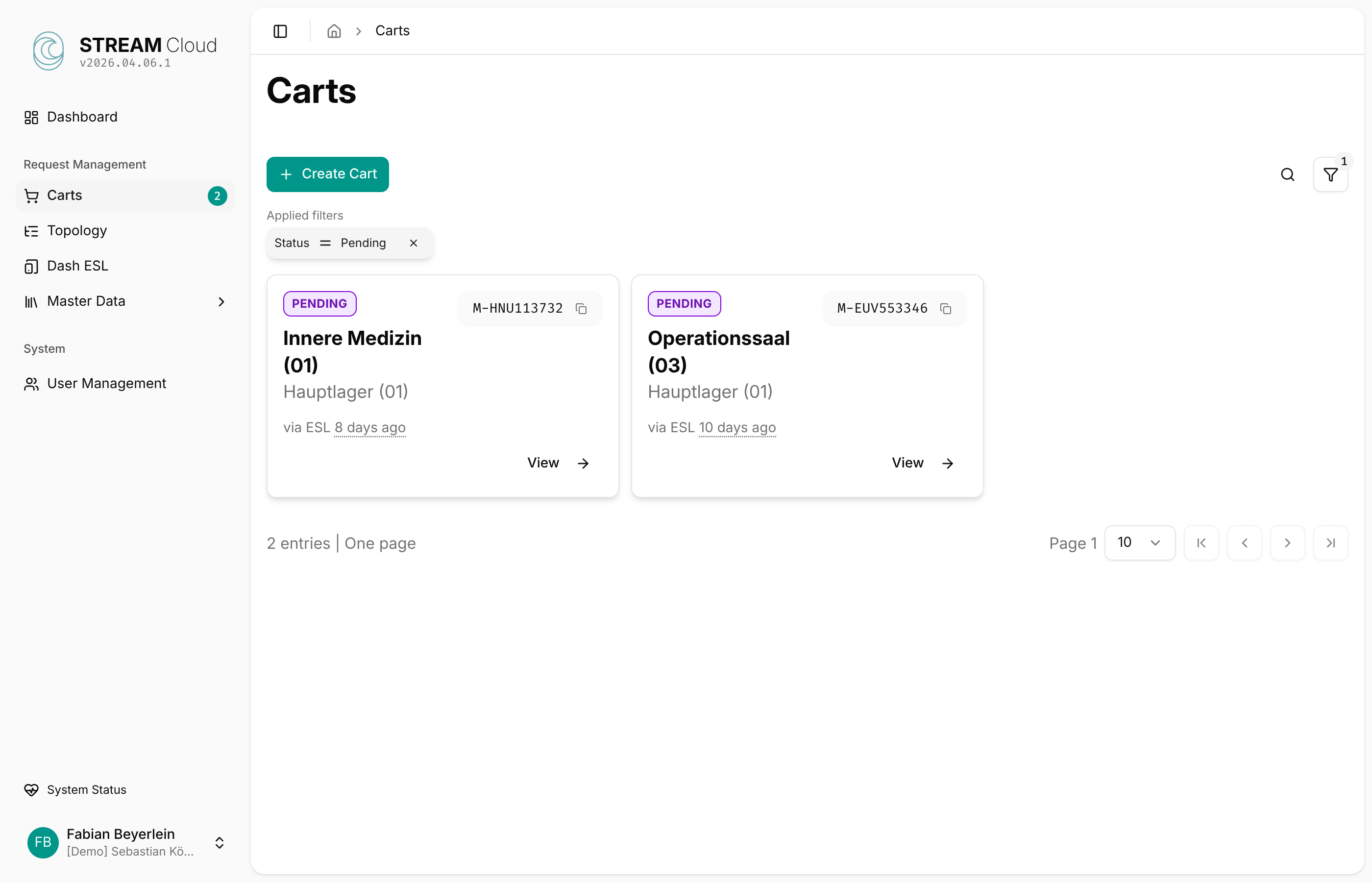
Carts bundle all order requests for a supply area and unit. They are created automatically when an ESL button press is received and no pending cart exists for that combination.
Each cart has a status:
| Status | Meaning |
|---|---|
| Pending | Cart is accepting orders and can be edited |
| Approved | Cart has been reviewed and approved for fulfillment |
| Deleted | Cart was rejected |
The cart overview shows all carts at a glance. Use the status filter to search for pending, approved, or deleted carts.
Creating a Cart
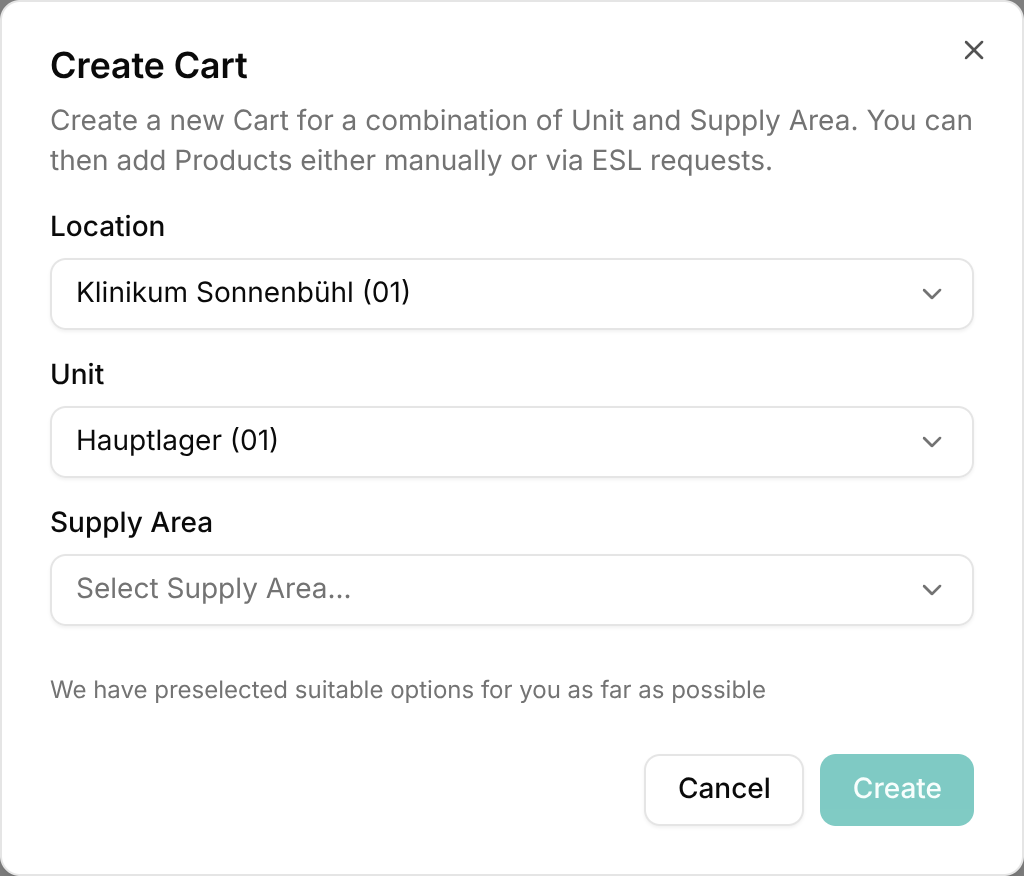
While carts are typically created automatically through ESL button presses, you can also create a cart manually via the Create Cart button. Select a location, unit, and supply area to create an empty cart that you can then fill with products.
Editing a Cart
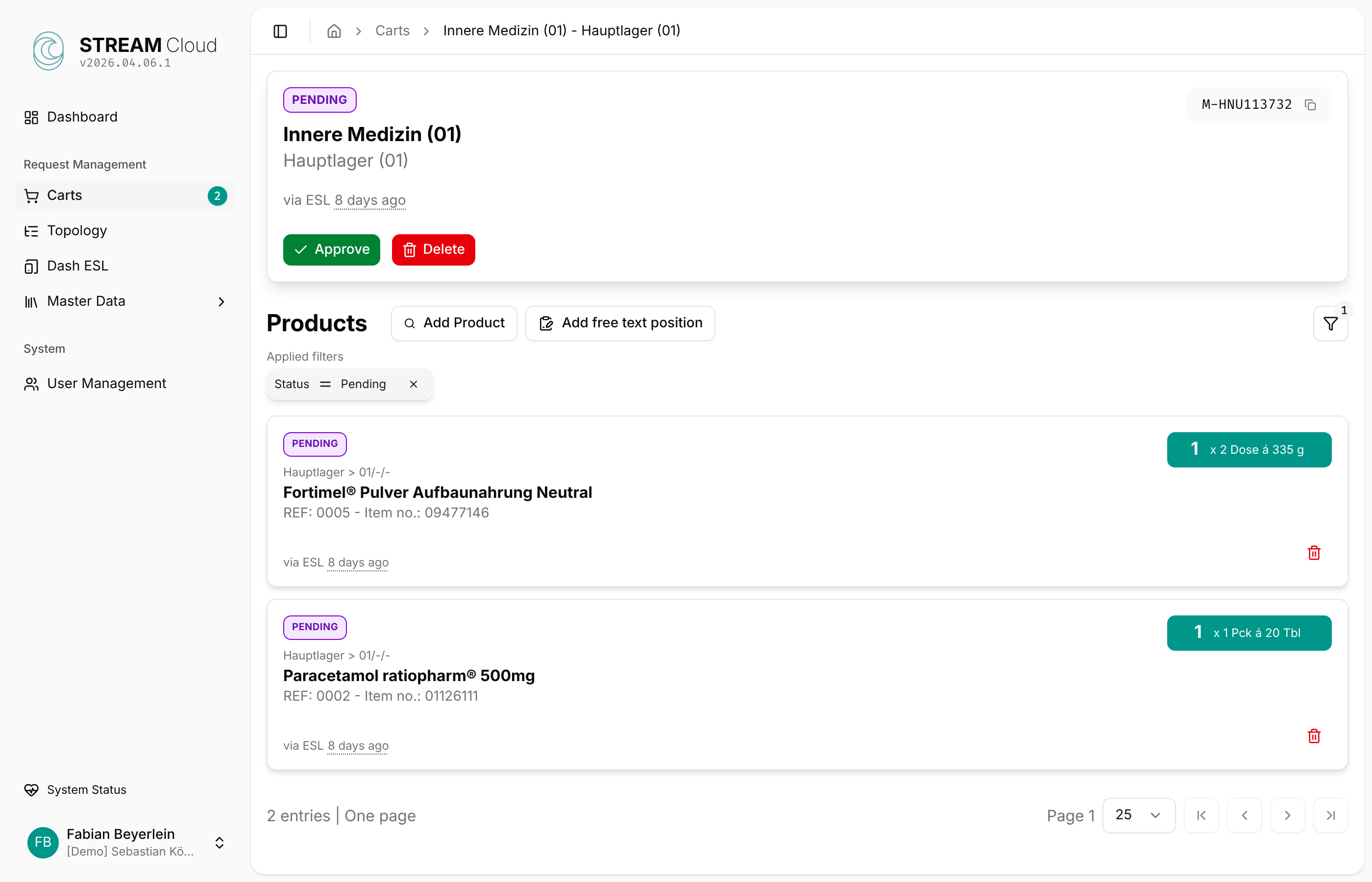
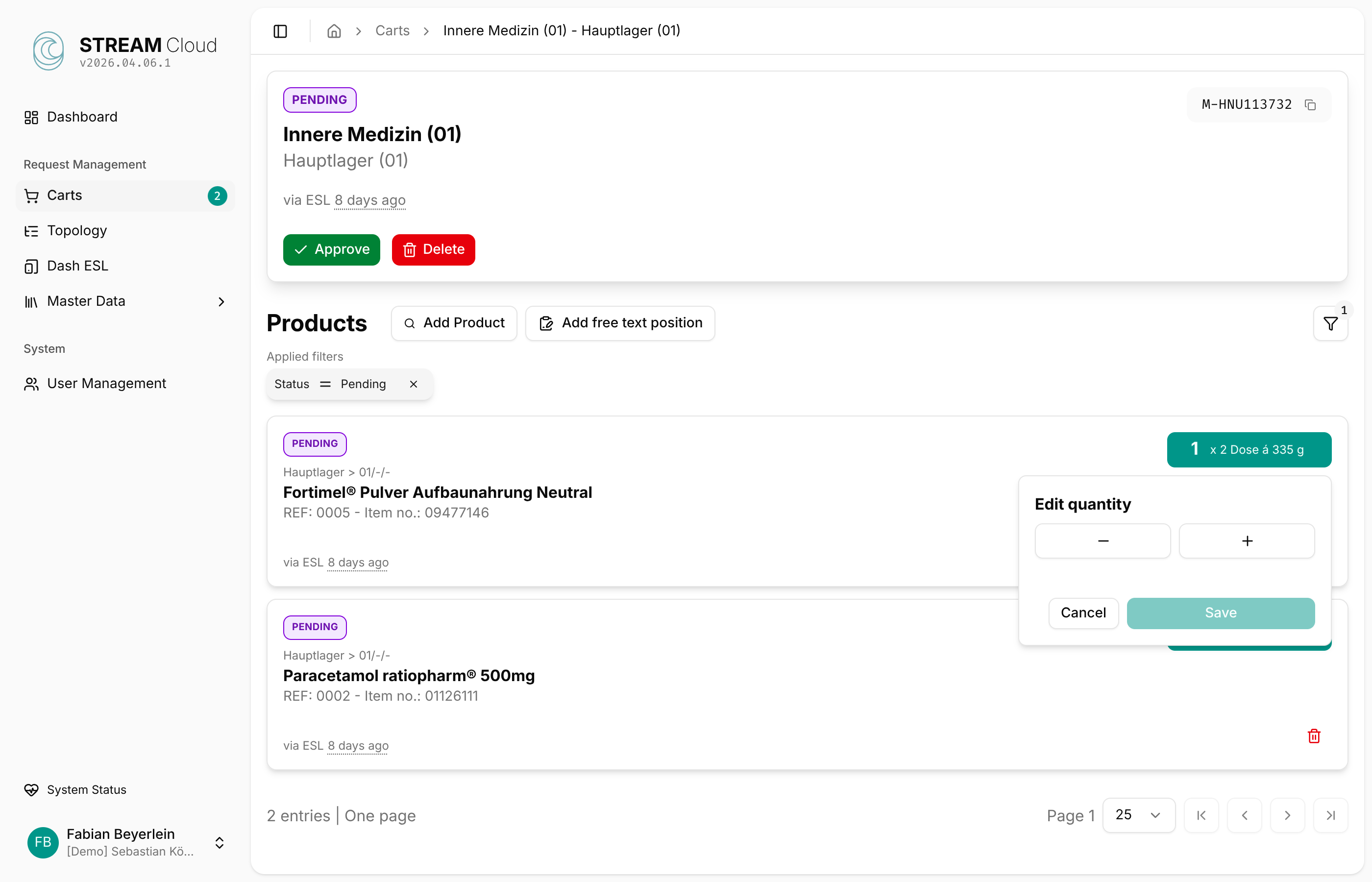
In the detail view of a pending cart you can add products, adjust quantities, remove items, and approve or delete the cart.
Items created via ESL button press are labeled "via ESL". Manually added items show the username of the person who added them.
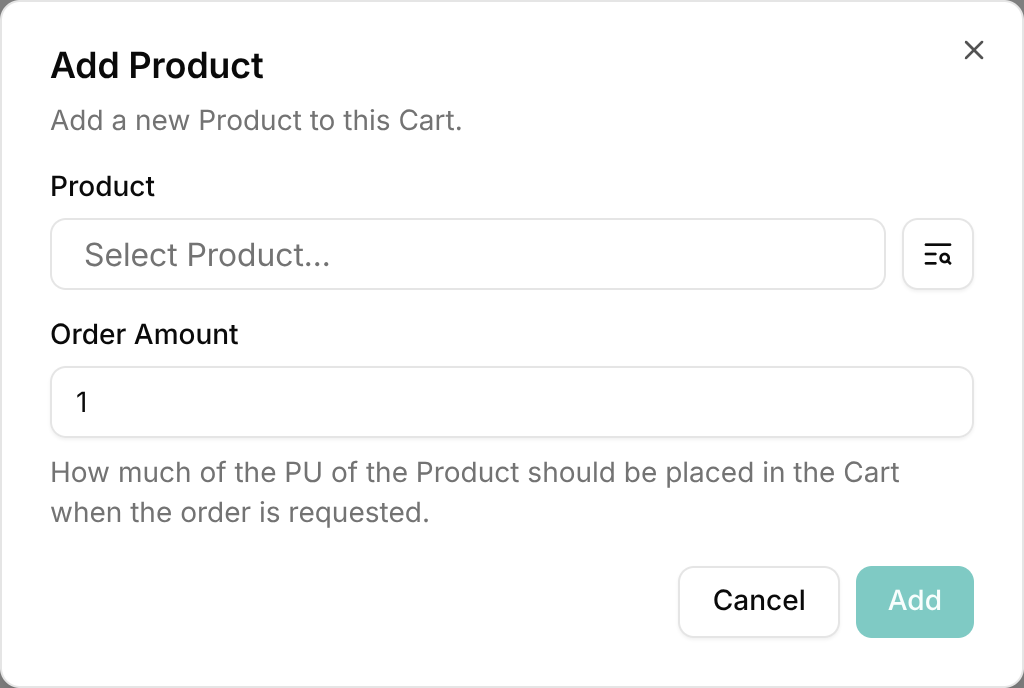
Add product - Select a product from the assortment and specify the order amount.
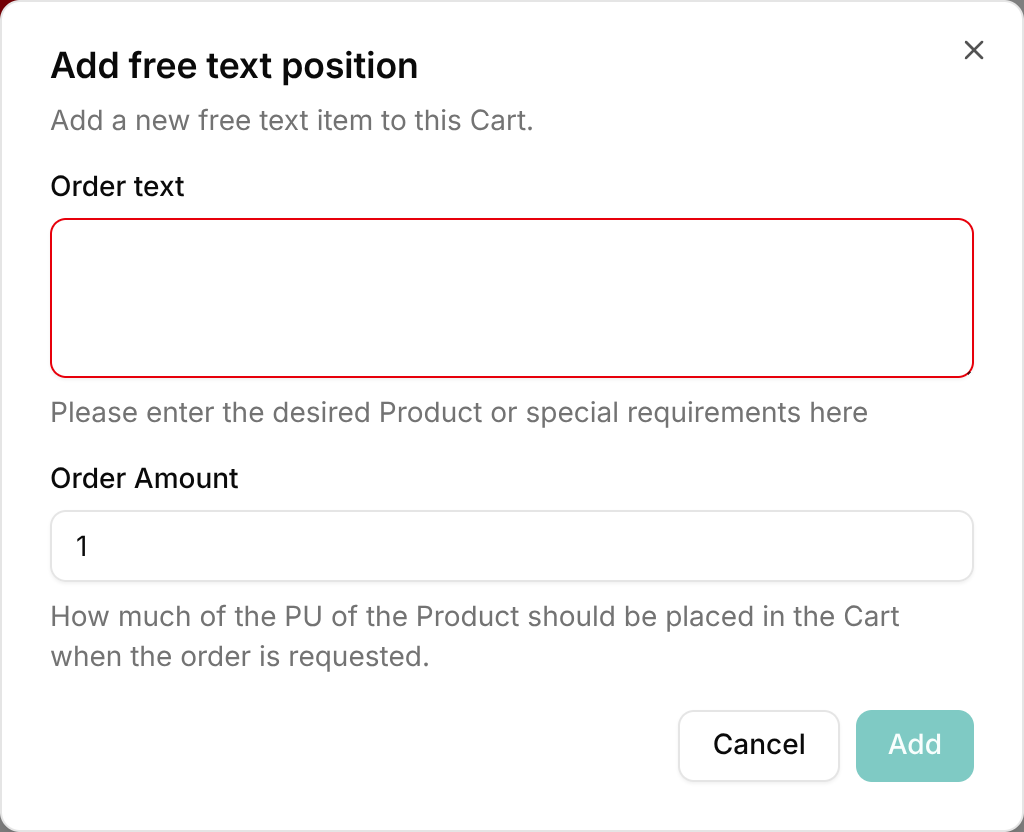
Add free text position - Enter a description for products that are not in the assortment or not managed through the materials management system.
Edit quantity - Click the quantity badge on an item to adjust the order amount.
If the request button on an ESL was pressed multiple times, a warning is shown on the item indicating that the product has been requested more than once.

Approve - Approve the cart for fulfillment. This requires password confirmation.
Delete - Reject the entire cart. This also requires password confirmation.